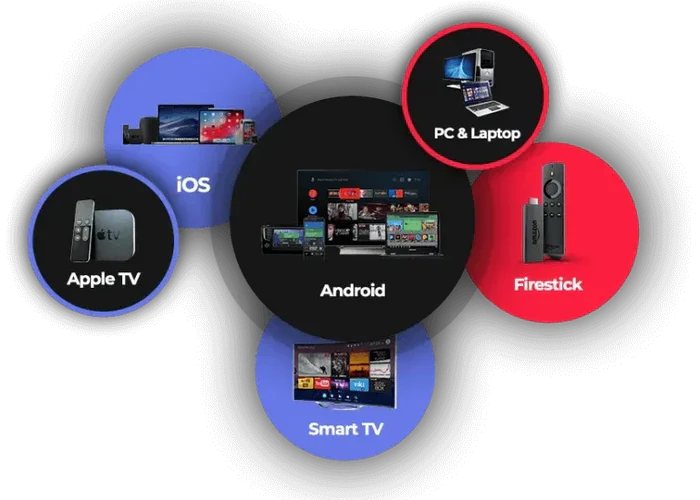
INSTALLATION MANUAL
Install on Android Smart tv, Phone or Tablet
1. Open the Google Play Store and search for “Allview +“.
- https://play.google.com/store/apps/details?id=com.allview.android
2. Install the app and enter your login information.
Install on iPhone, iPad and Apple TV
1. Open the App Store and search for “Allview +”
2. Install the app and enter your login information.
Apple Tv
Step 1. Open a search box at the App Store.
Select the App Store icon in the Settings column. Then select a search box.
Step 2. Search for the Allview + App.
In the highlighted space, enter Allview + with a keyboard and click OK to track the application.
Step 3. Install the Allview + App from the App Store.
After the Allview + application icon appears, click the GET button to begin the installation process.
Step 4. Enter your login information.
Download Allview + on Firestick/ Amazon Devices
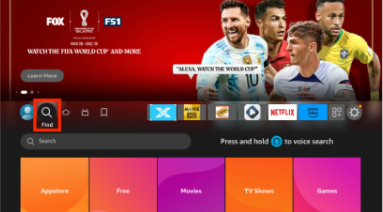
1. From the home screen of your device, hover over the Find option
2. Click Search.
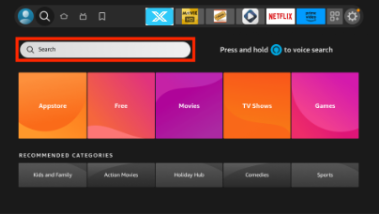
3. Search for and select Allview.
1. CLick on the Download Button below.
2. Go to downloads on you pc and install NoraGO
3. Put in Login Details
- Installing Allview + Application on Samsung Smart TV
- Step 1. Finding the Allview+ App
- Step 2. Installing the application
Downloading the Allview + App for Samsung Smart TV can be done in the App Store for different Samsung TV models.
These are some models in which you can install the Allview + application are:
UKS9500, UKS9000, UKS8500, UKS8000 UKS7500, UKS7000, UKU6500, UKU6400, UKU6300, UKU6000, UK6200, UK5500.
How Do I Set up Allview + on Samsung Smart TV?
Step 1. Search Allview + App at the App Store.
On the remote control, press the SMART TV button, then select the APPS icon.
Then select the “Search” field and enter “Allview +”.
Type Allview + on the keyboard and press the DONE key.
Step 2. Install Allview + App on your Samsung Smart TV.
Click “install”. After installation, open Allview + application.
Step 3. Put in Login Details
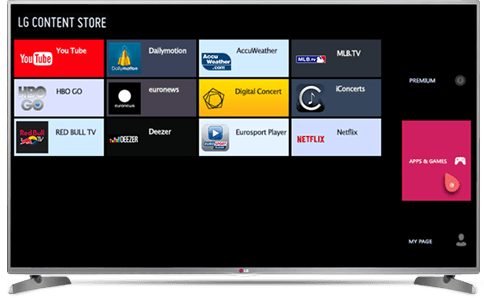
To install the Allview + application on Lg Smart TV, you must first install the webOS 2.0 operating system.
How Do I Set up Allview + on LG Smart TV?
Step 1. Finding Allview + App
Press the HOME button on the remote control, then press “LG Content Store”
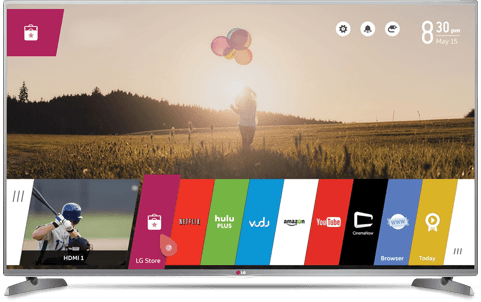
Select the category APPS & GAMES
Click the SORT & FILTER button, then select the Entertainment category.
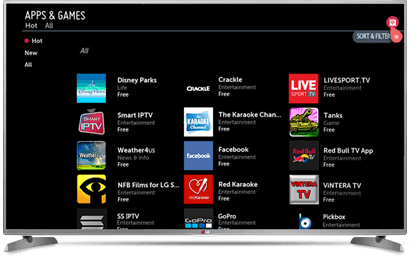
Using the arrows on the TV cable, find the Allview + app.
Step 2. Installing the Allview + App
Step 3. Put in login Details
NB: Not all Channels will play on Roku devices
Open your Roku and press the Home button on the remote;
Go to Streaming Channels or Movies and TV;
Either browse through the Categories on the left and search for Allview + in the right panel;
Or go to Search Channels and type in Allview +;
Click and download to your Roku device
Login with your username and password
NB: using Allview + app on some roku devices do cause some playback issues
1. CLick on the Download Button below.
2. Go to downloads on you mac and install NoraGO
3. Put in Login Details