Allview TV

INSTALLATION MANUAL

Install on Android Smart tv, Phone or Tablet

  • 1. Open the Google Play Store and search for “Allview +“.
  • https://play.google.com/store/apps/details?id=com.allview.android
  • 2. Install the app and enter your login information.


Install on iPhone, iPad and Apple TV

  • 1. Open the App Store and search for “Allview +” 
  • 2. Install the app and enter your login information.


Apple Tv

Step 1. Open a search box at the App Store.

Select the App Store icon in the Settings column. Then select a search box.


Step 2. Search for the Allview + App.

In the highlighted space, enter Allview + with a keyboard and click OK to track the application.

Step 3. Install the Allview + App from the App Store.

After the Allview + application icon appears, click the GET button to begin the installation process.

Step 4. Enter your login information.

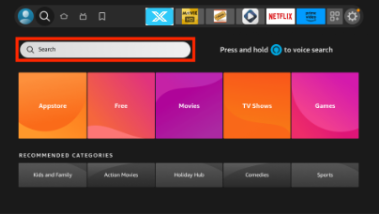
Download  Allview + on Firestick/ Amazon Devices


  • 1. From the home screen of your device, hover over the Find option
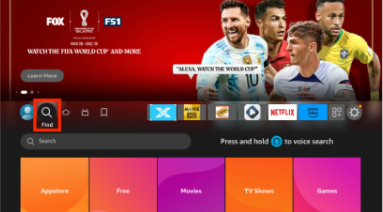
  • 2. Click Search.

      3. Search for and select Allview.


  • 1. CLick on the Download Button below.
  • 2. Go to downloads on you pc and install NoraGO
  • 3. Put in Login Details
  • Installing Allview + Application on Samsung Smart TV
    • Step 1. Finding the Allview+ App
    • Step 2. Installing the application

Downloading the Allview + App for Samsung Smart TV can be done in the App Store for different Samsung TV models.

These are some models in which you can install the Allview + application are:

UKS9500, UKS9000, UKS8500, UKS8000 UKS7500, UKS7000, UKU6500, UKU6400, UKU6300, UKU6000, UK6200, UK5500.

How Do I Set up Allview + on Samsung Smart TV?

Step 1. Search Allview + App at the App Store.

On the remote control, press the SMART TV button, then select the APPS icon.

Then select the “Search” field and enter “Allview +”.

Type Allview + on the keyboard and press the DONE key.


Step 2. Install Allview + App on your Samsung Smart TV.

Click “install”. After installation, open Allview + application.


Step 3. Put in Login Details

To install the Allview + application on Lg Smart TV, you must first install the webOS 2.0 operating system.

How Do I Set up Allview + on LG Smart TV?

Step 1. Finding Allview + App

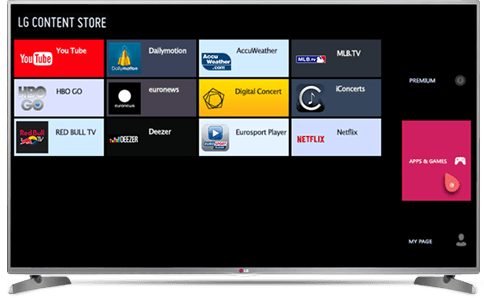
Press the HOME button on the remote control, then press “LG Content Store”
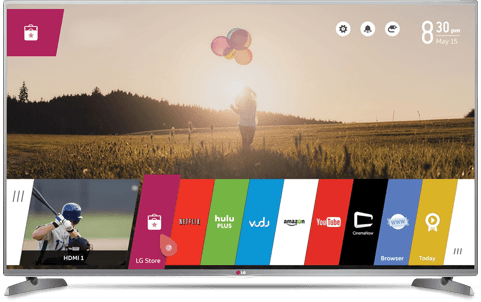
Select the category APPS & GAMES

Click the SORT & FILTER button, then select the Entertainment category.
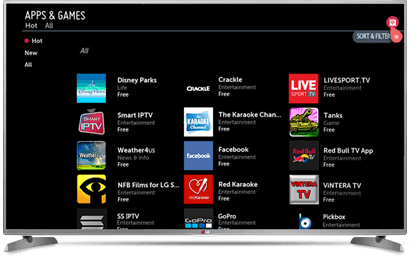
Using the arrows on the TV cable, find the Allview + app.


Step 2.  Installing the Allview + App

Select the Install option.


Step 3.  Put in login Details
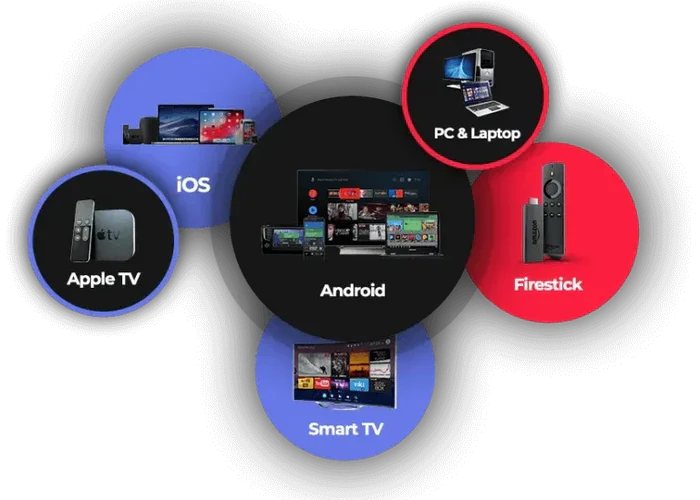


NB: Not all Channels will play on Roku devices

  1. Open your Roku and press the Home button on the remote;
  2. Go to Streaming Channels or Movies and TV;
  3. Either browse through the Categories on the left and search for Allview + in the right panel;
    Or go to Search Channels and type in Allview +;
  4. Click and download to your Roku device
  5. Login with your username and password

NB: using Allview + app on some roku devices do cause some playback issues

  • 1. CLick on the Download Button below.
  • 2. Go to downloads on you mac and install NoraGO
  • 3. Put in Login Details
Scroll to Top