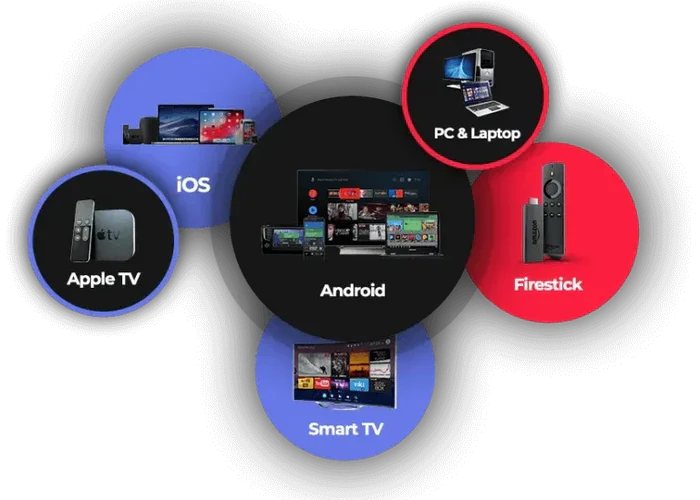
Install on iPhone, iPad and Apple TV
1. Open the App Store and search for “Allview +”
2. Install the app and enter your login information.
Apple Tv
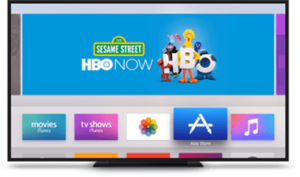
Step 1. Open a search box at the App Store.
Select the App Store icon in the Settings column. Then select a search box.
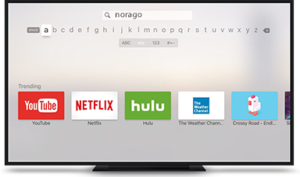
Step 2. Search for the Allview + App.
In the highlighted space, enter Allview + with a keyboard and click OK to track the application.
Step 3. Install the Allview + App from the App Store.
After the Allview + application icon appears, click the GET button to begin the installation process.
Step 4. Enter your login information.
Download Allview + on Firestick/ Amazon Devices
1. From the home screen of your device, hover over the Find option
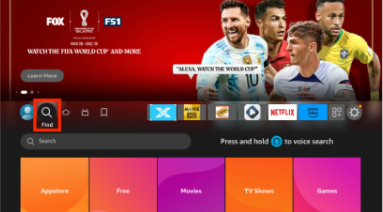
2. Click Search.
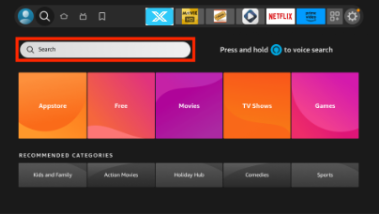
3. Search for and select Allview.
- Installing NoraGO Application on Samsung Smart TV
- Step 1. Finding the NoraGO App
- Step 2. Installing the application
Downloading the NoraGO App for Samsung Smart TV can be done in the App Store for different Samsung TV models.
These are some models in which you can install the NoraGO application are:
UKS9500, UKS9000, UKS8500, UKS8000 UKS7500, UKS7000, UKU6500, UKU6400, UKU6300, UKU6000, UK6200, UK5500.
How Do I Set up NoraGO on Samsung Smart TV?
Step 1. Search NoraGO App at the App Store.
On the remote control, press the SMART TV button, then select the APPS icon.
Then select the “Search” field and enter “NoraGO”.
Type NoraGO on the keyboard and press the DONE key.
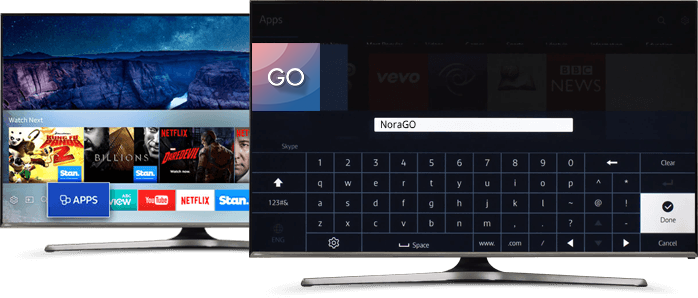
Step 2. Install NoraGO App on your Samsung Smart TV.
Click “install”. After installation, open NoraGO application.
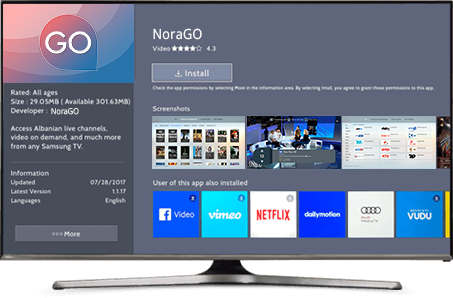
Step 3. Put in Login Details
To install the NoraGO application on Lg Smart TV, you must first install the webOS 2.0 operating system.
How Do I Set up NoraGO on LG Smart TV?
Step 1. Finding NoraGO App
Press the HOME button on the remote control, then press “LG Content Store”
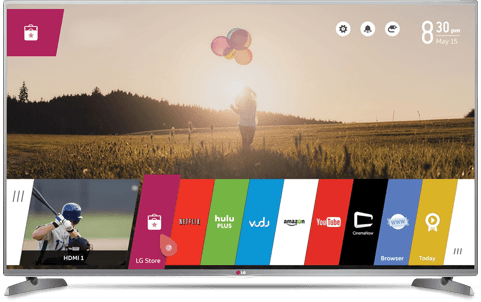 Select the category APPS & GAMES
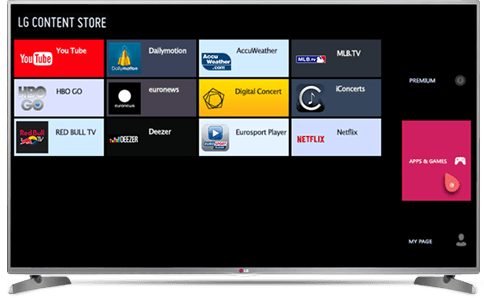 Click the SORT & FILTER button, then select the Entertainment category.
 Using the arrows on the TV cable, find the NoraGO app.
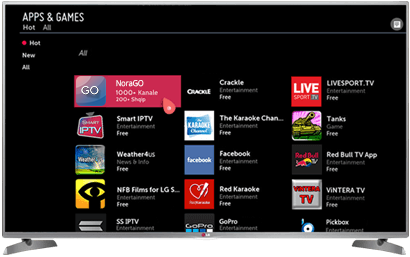
Step 2. Installing the NoraGO App
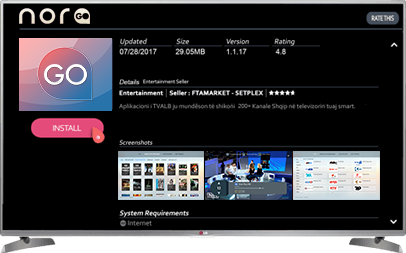
Step 3. Put in login Details